
Here’s an easy step-by-step guide to capturing keyword rank in Google Analytics.
1. Create a New Google Analytics Profile
Simply click on Analytics Settings within Google Analytics. You must be a Google Analytics administrator to do this.

At the bottom, find and click on Add Website Profile.

You want to Add a Profile for an existing domain and then select the domain and enter a Profile Name. I suggest something easy and descriptive like “Google Rank”.
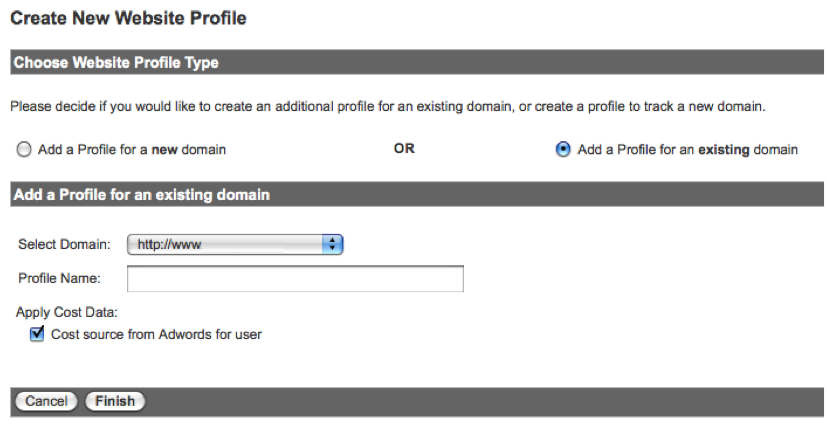
When you’re done you’ll see a new profile appear in your Analytics Settings list. Don’t worry if you see a yellow triangle with an exclamation point in the Status column. The tracking for a new profile takes a bit of time to populate. As long as the current tracking for that domain is working, this will take care of itself.
2. Create Profile Filters
Click the Edit link next to your new profile so you can create three filters. The first ensures this profile will only report organic traffic.
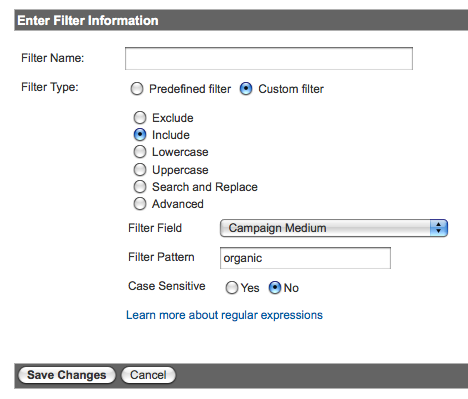
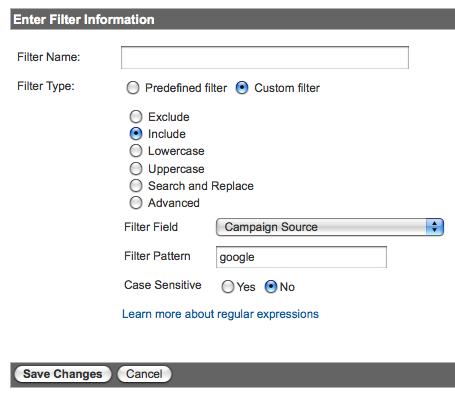
The second ensures this profile will only report Google traffic.
The third one is a bit more complicated and involves capturing the keyword rank using a regular expression in an Advanced Filter.
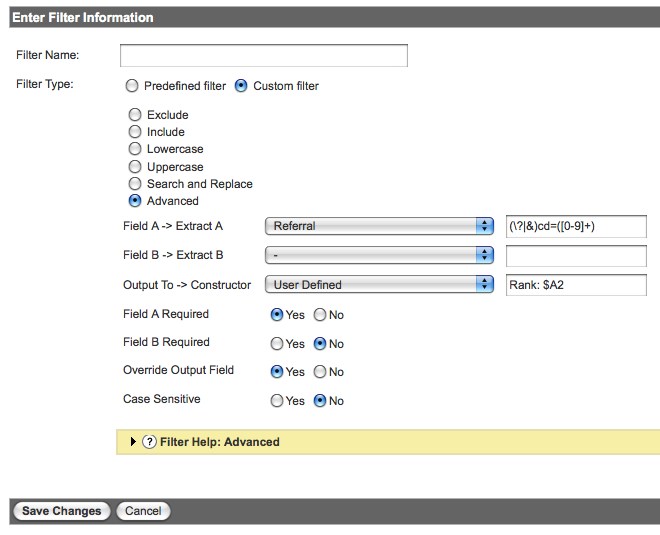
If the picture isn’t clear enough you want to enter: (\?|&)cd=([0-9]+)
All the regular expression is doing is looking for that special parameter (?cd= or &cd=) in the URL and then capturing the number (aka rank) after the cd= and using it in the User Defined field. You might be able to get away with just &cd=([0-9]+) but smart folks like Yoast are using both. I did a quick test and captured that data ($A1) and found 100% of it to be the ampersand (&). That said, I recommend covering your bases and match on both.
Remember to be sure to use $A2 since the number 2 refers to the second parenthesis where you’re capturing rank. If you’re interested (like I was) the advanced filters help on Google isn’t a bad read and this regex cheat sheet is a nice reference as well.
That’s it! Really, you’re done.
3. Wait and Review Your Keyword Ranking Reports
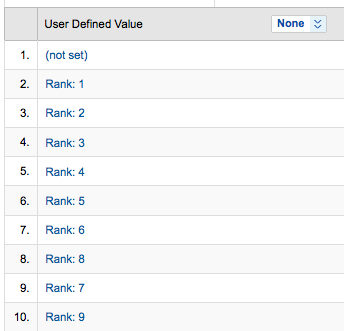
You’ll have to wait a day for the data to be collected since filters are not retroactive.
Wake up the next day and visit your new Google Rank profile. You’ll need to navigate to the User Defined section under Visitors. Once you click User Defined you’ll hopefully see a clean keyword ranking report. The (not set) value at the top indicates that no rank was captured, most likely because it was not an AJAX search result.
Now, there are other ways to configure these filters to combine keyword and rank, or exclude non-AJAX URLs. I’ve chosen to do itthis way because I find it easier to view and more flexible in creating additional filters and custom reports. That’s not to say that you couldn’t create yet another profile to try different filter variations. Don’t be afraid to try (and break) things until you figure it out.


Awesome post..
ReplyDeleteThis contains all the details to refer to find out keyword ranking and other information about a site. As it can be said that that by going through your post will help to the beginner.